

Histology

Overview
The Histology facet in PeCan allows users to explore over 3,000 histology slides from pediatric solid tumor samples. In addition to exploring St. Jude Slides, users can also upload their own slides to their personal, private dashboard to complete comparisons and analysis directly in PeCan.
Slide Search
From the Histology homepage in PeCan, use the search bar and filters to locate slides by Sample ID, Subtype Root, Subtype(s), Sex, Age Range, Site, Evaluation, or Site Classification.
Gallery View
Search results are displayed as thumbnails. Each thumbnail includes Subject ID, tissue type, gender, age, and subtype.
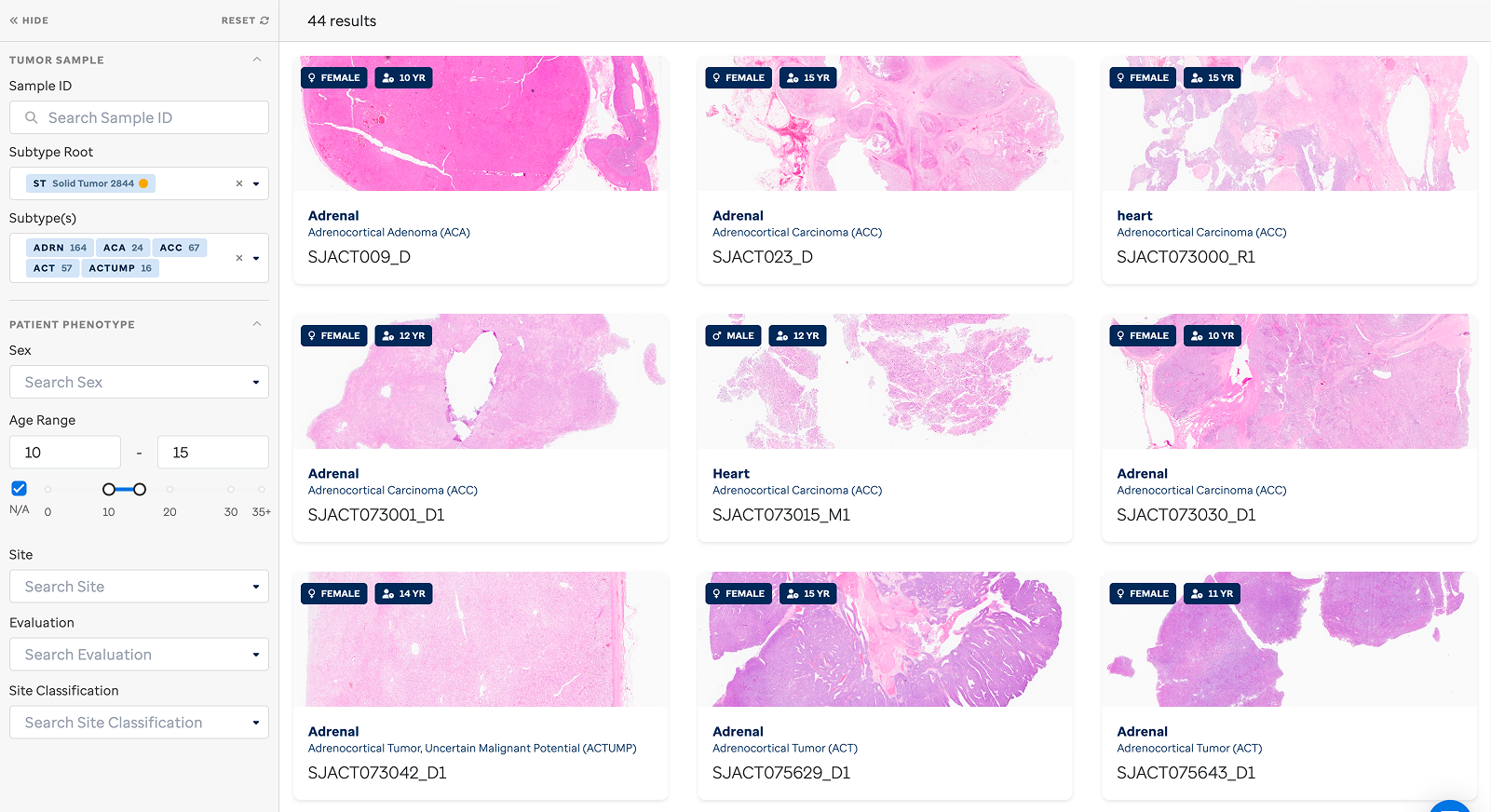
Figure 1: Gallery View.
Apply filters or search for specific Sample IDs to explore slides.
Whole Slide View
Click a thumbnail to open the Whole Slide Image viewer. Use the available zoom and rotation tools in the slide viewer to examine the slide in depth. Metadata is displayed alongside the image.
Subject Timeline
Click 'Show Timeline' to view additional slides from the same subject or 'Hide Timeline' to return to the main viewer.
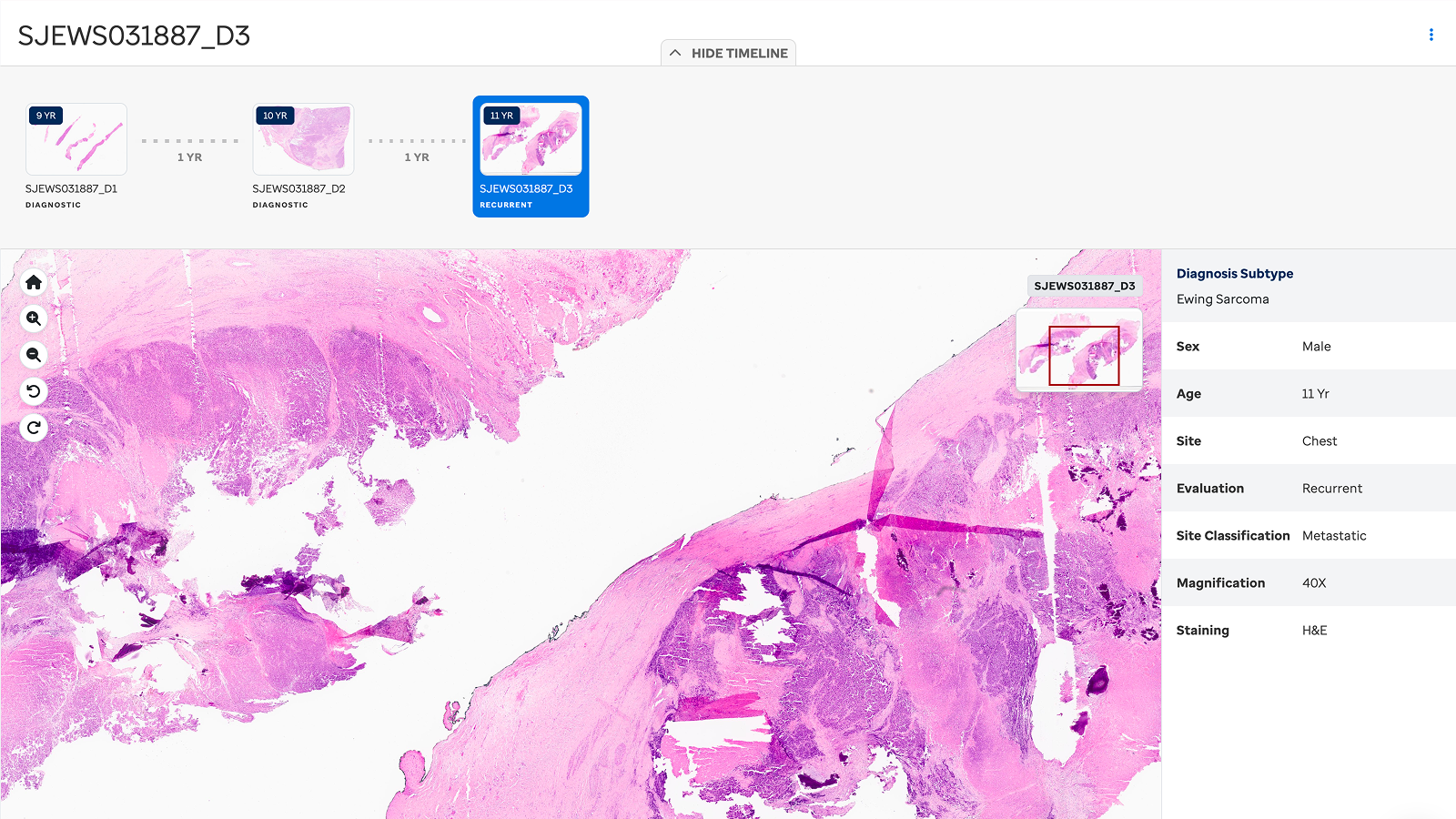
Figure 2: Subject Timeline.
View a timeline of additional slides from the same subject by using the timeline feature.
Similar Slides
Using the Similar Slides feature, PeCan allows you to find slides most similar to the slide you are viewing. You can view similar Whole Slide Images or explore based on Regions of Interest (ROI).
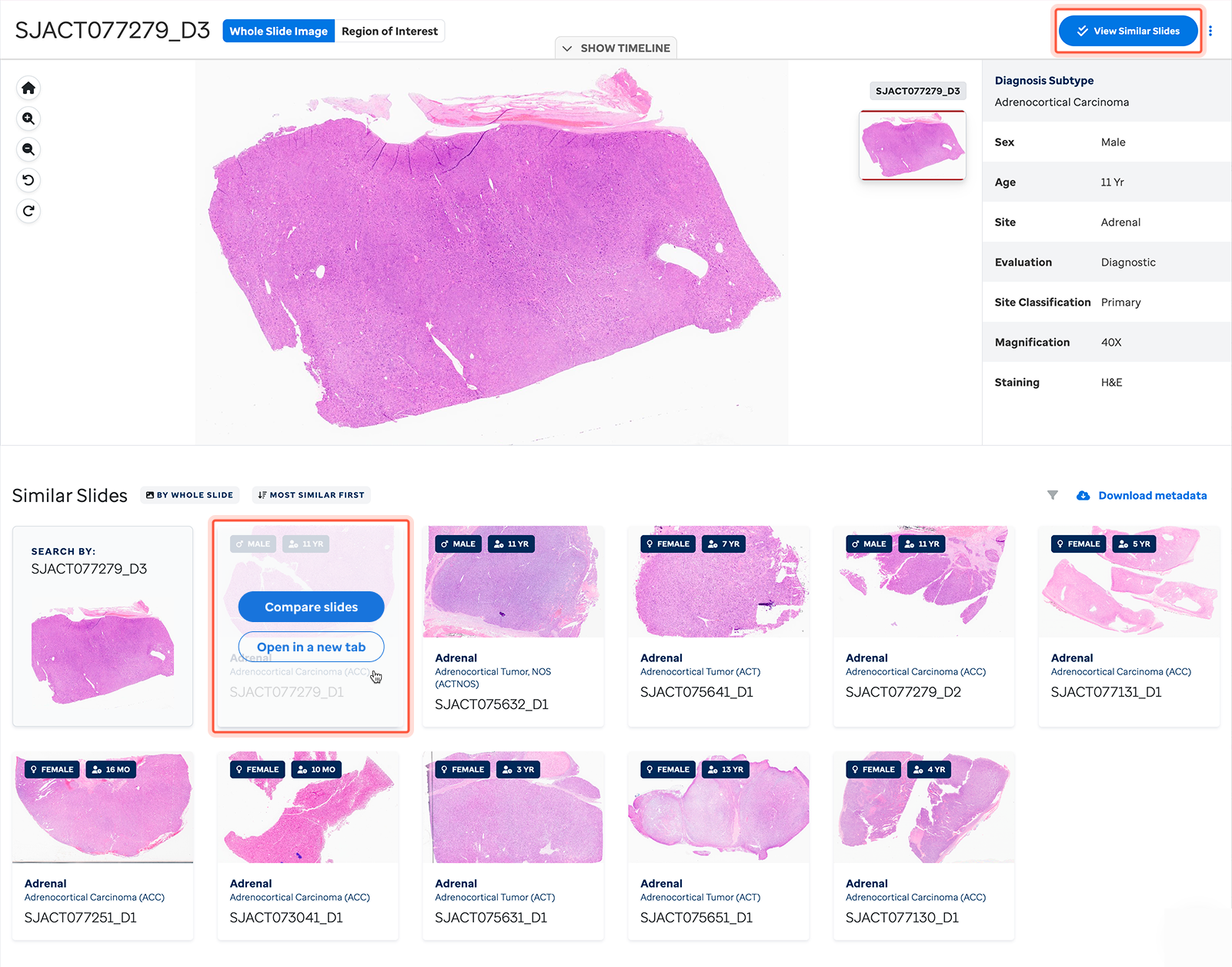
Figure 3: Similar Slides.
Select similar slides from Whole Slide View to see slides similar to the one you're viewing. Click 'Compare Slides' from a slide to open a side-by-side comparison. Use the arrows to navigate through similar slides. When comparing slides, metadata will display for both slides in view.
Regions of Interest (ROI)
Regions of Interest are precomputed as part of our image search model. Toggle to ROI mode to explore precomputed 512 by 512 pixel patches. Click any patch to find similar patches in the St. Jude Cloud image database. The patches that are most similar will be highlighted as "Hit Patches".
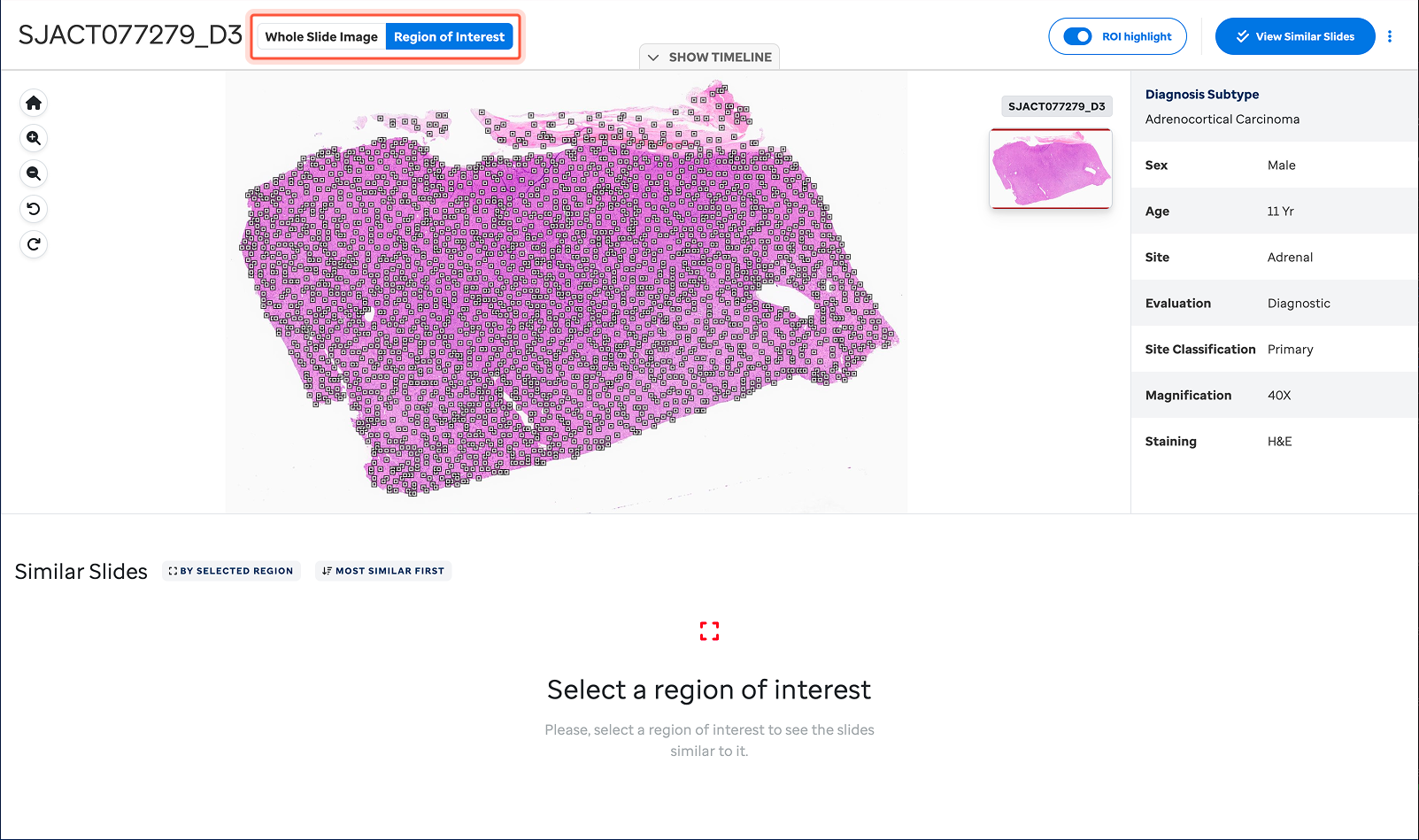
Figure 4: Regions of Interest.
Regions of Interest mode allows users to select a ROI patch and find slides with similar patches. The "hit" patch is the single patch on that result slide that is most similar to the selected patch on the original search slide, compared to the rest of the patches on the particular result slide.

Figure 5: Hit Patch.
Comparison of Regions of Interest from two slides.
Heatmap
While comparing Regions of Interest between two slides, enable the heatmap overlay to visualize similarity level between the selected region and regions of the search result slide.
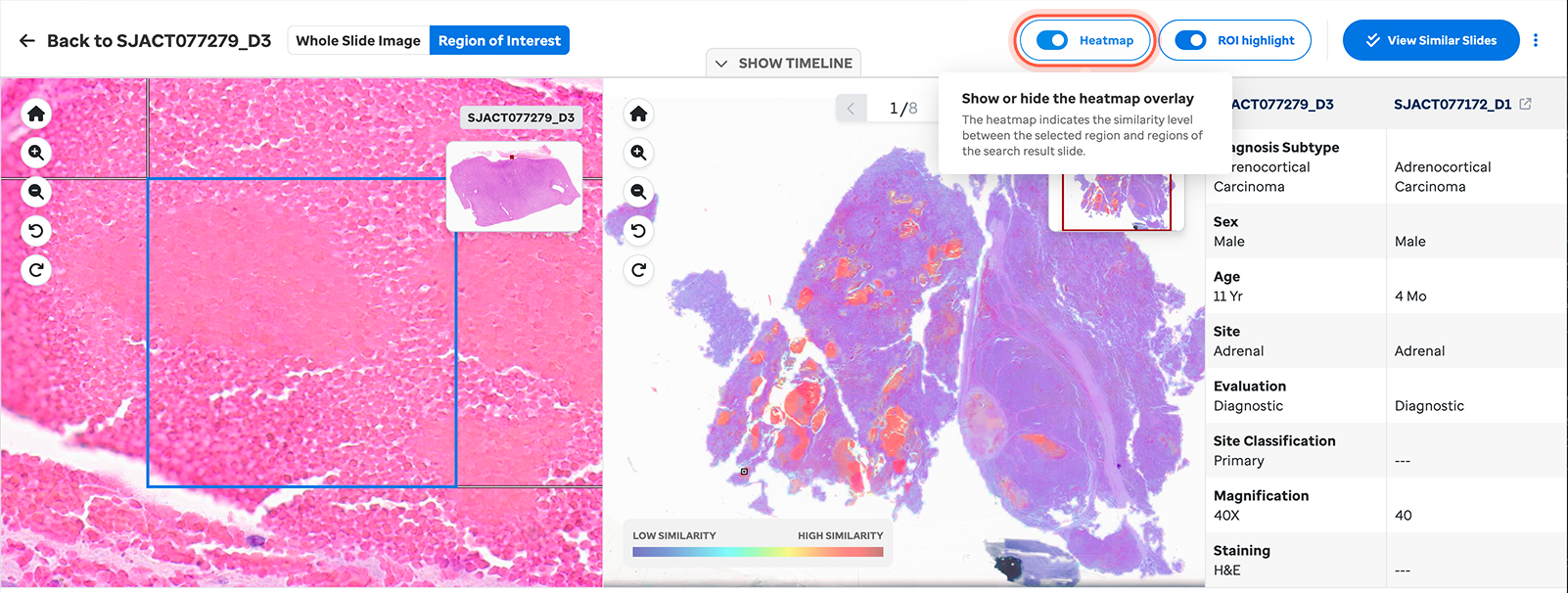
Figure 6: Heatmap. Similarity level of regions in comparison mode.
General Features
Copy URL: Share the current view by selecting Copy URL from the slide viewer.
User Uploaded Slides
Upload your own SVS histological slide images to PeCan to explore and compare them to slides within the St. Jude Cloud dataset. Users can upload up to 20 of their own slides to their account on St. Jude Cloud. All slides uploaded by users to their account are private and not shared publicly.
Please note that only SVS images can be uploaded and used in our image search tool. Follow these steps to get started.
Uploading Slides
- Log in to your St. Jude Cloud account.
- Go to the 'My Slides' tab in the Histology facet.
- Click 'Start Your First Search'.

Figure 7: Start Your First Search.
- Review and accept the terms and conditions.
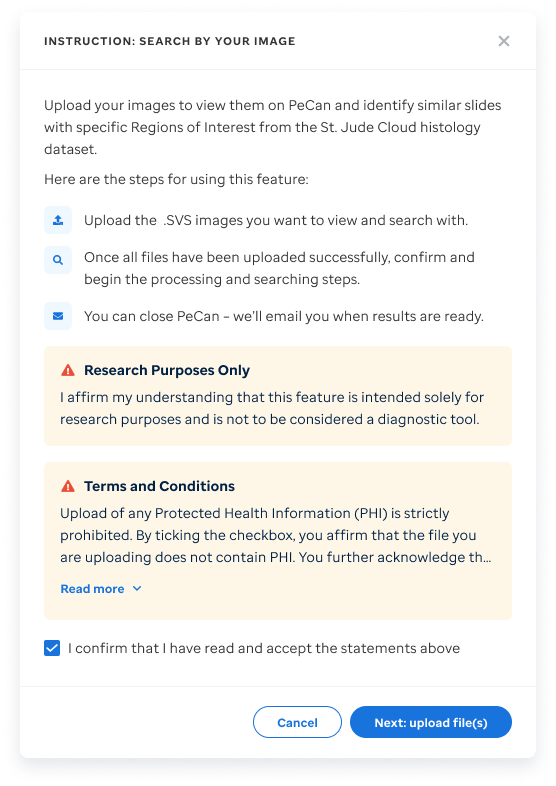
Figure 8: Terms and Conditions.
- Upload SVS files by clicking or dragging them into the upload area.

Figure 9: Upload SVS Files.
- Monitor the progress bar.
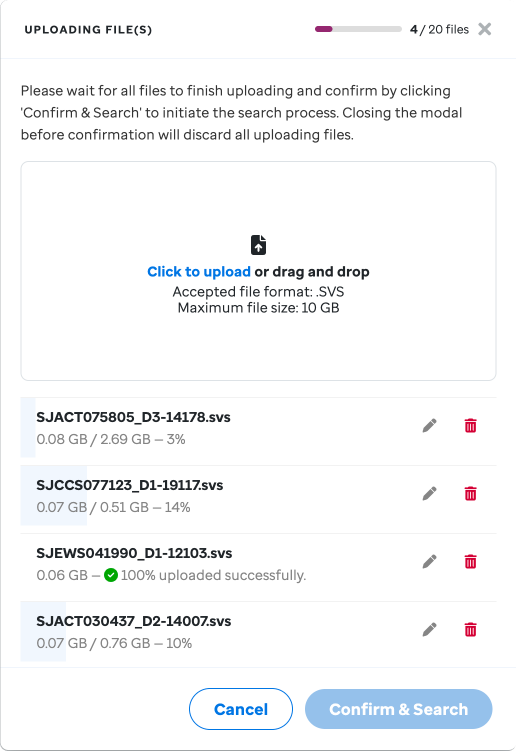
Figure 11: Upload Progress.
- Rename or delete slides as needed.
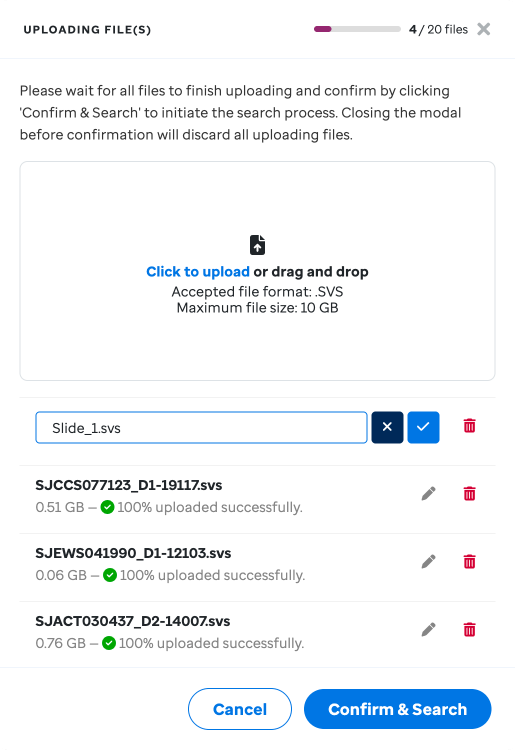
Figure 11: Rename Slide.
- Click 'Confirm & Search' when uploads are complete.
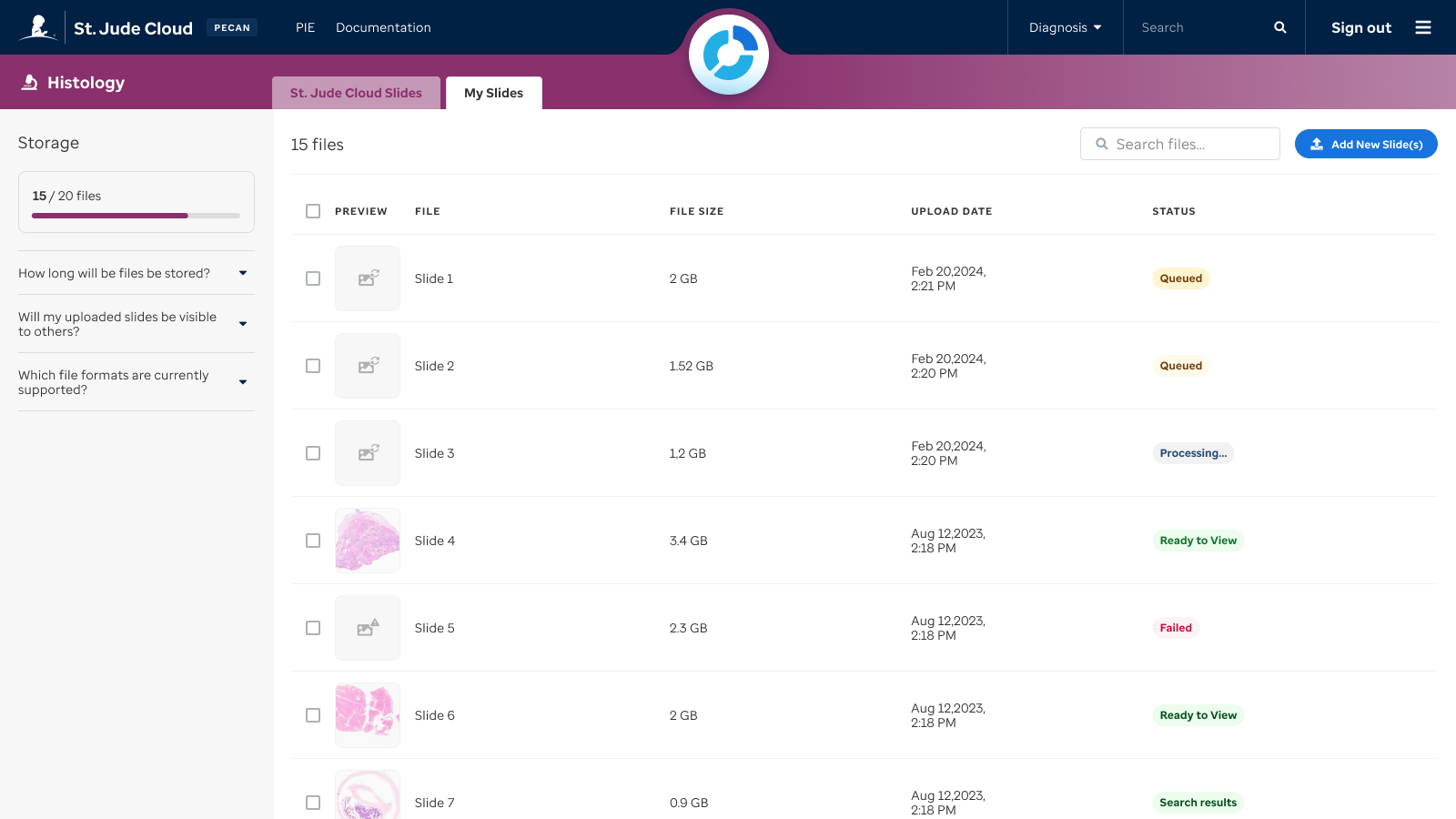
Figure 12: User Dashboard.
If you have not logged into your PeCan account for 30 days, your uploaded slides will be deleted. Otherwise, you can choose to delete them at any time.
For additional information or if you have questions, please contact us at support@stjude.cloud.